

AI Super Resolution for Photos and Anime Art

Upload a JPG, PNG or WebP image, choose Photo or Anime mode and a factor from 2× to 16×, and Super Resolution upscales it into a larger PNG; paid results download without a watermark. Use it for portraits, anime art, product photos, screenshots and prints.

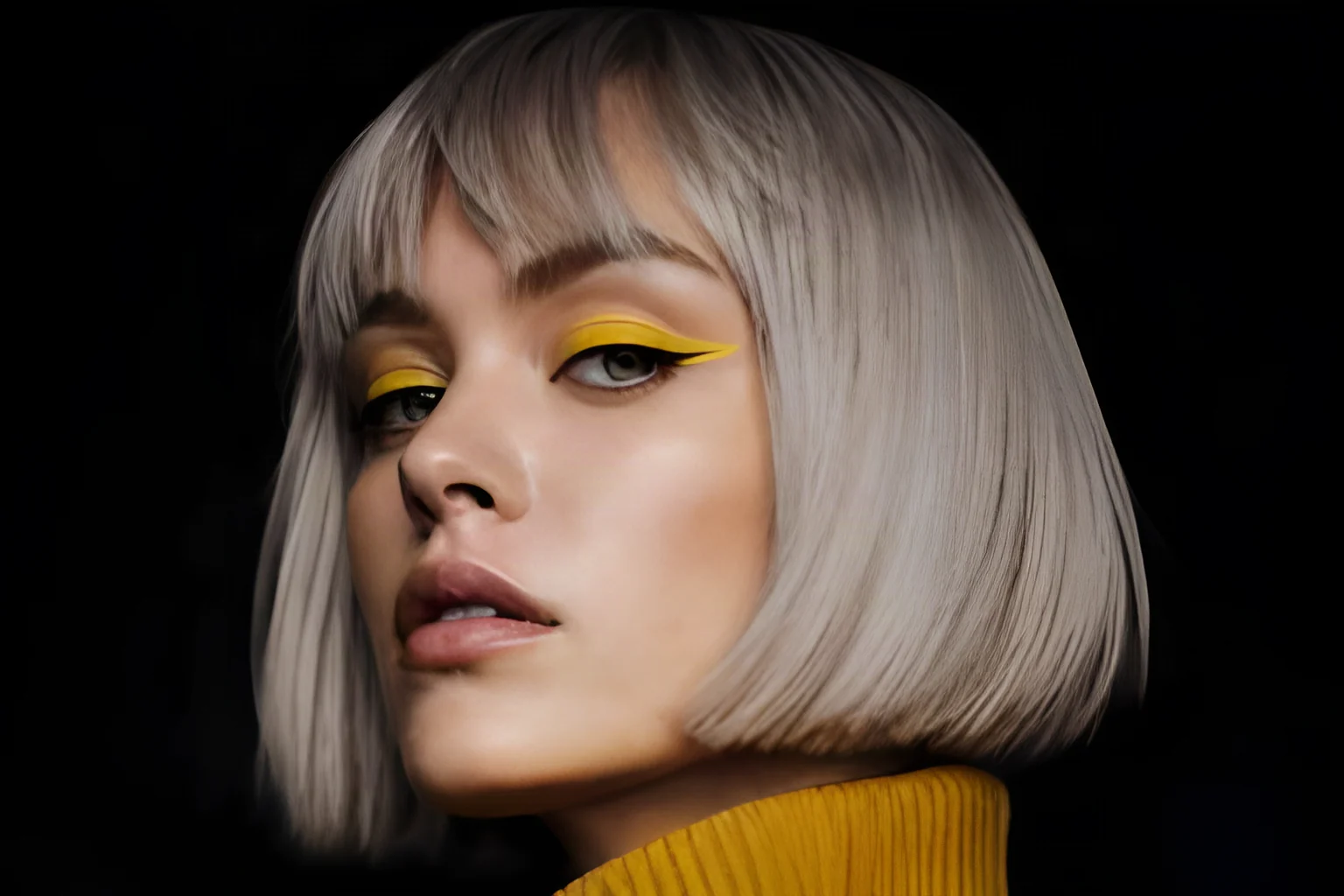
The same portrait upscaled 2× by Super Resolution, showing hair, skin and fabric detail
Low-resolution version of a portrait: a woman with a silver bob and yellow eyeliner
BeforeAfter
Mode
Upscale factor

Optional setting for images that show people. Leave it off for images without people.

Requires purchased credits
Output
—
Cost
—
Free to start
  • No watermark on paid results
  • 2× to 16×upscale factors
  • PNG output
  • Results up to 34 MP

Features

Super resolution features: two modes, face enhancement and PNG output

Image super resolution on this page comes with two modes, an optional face enhancement setting, a PNG download and a credit cost shown before each upscale.

Photo and Anime modes for different kinds of images

Super resolution in Photo mode suits camera photos, portraits and product shots, while Anime mode suits illustrations, manga pages and game art. Choose the mode that matches your source, then run the upscale; either mode works with every factor from 2× to 16×, and you can switch modes for the next image.

Upscale a Photo
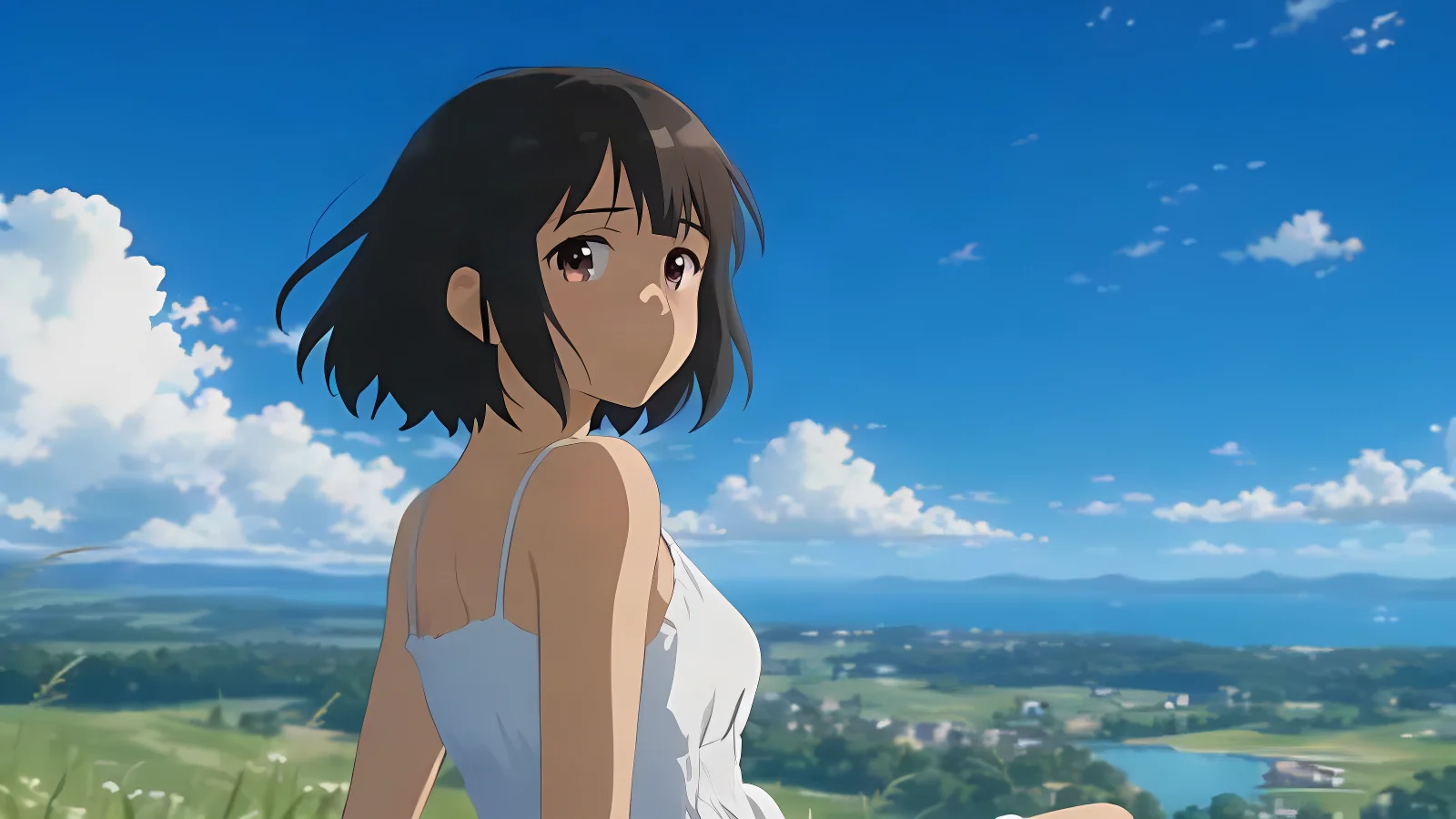
The same anime illustration upscaled 2×, showing the lines, hair and clouds
Low-resolution version of an anime illustration: a girl on a grassy hilltop under a blue sky
BeforeAfter

Enhance faces for portraits and group photos

Enhance faces suits images that show people, such as portraits, family photos and group shots, when you run them through super resolution. Leave it off for landscapes, artwork and product shots, where there are no faces to enhance. Paid credits unlock Enhance faces, and the Cost line shows its credits before you press Upscale.

Upscale a Portrait
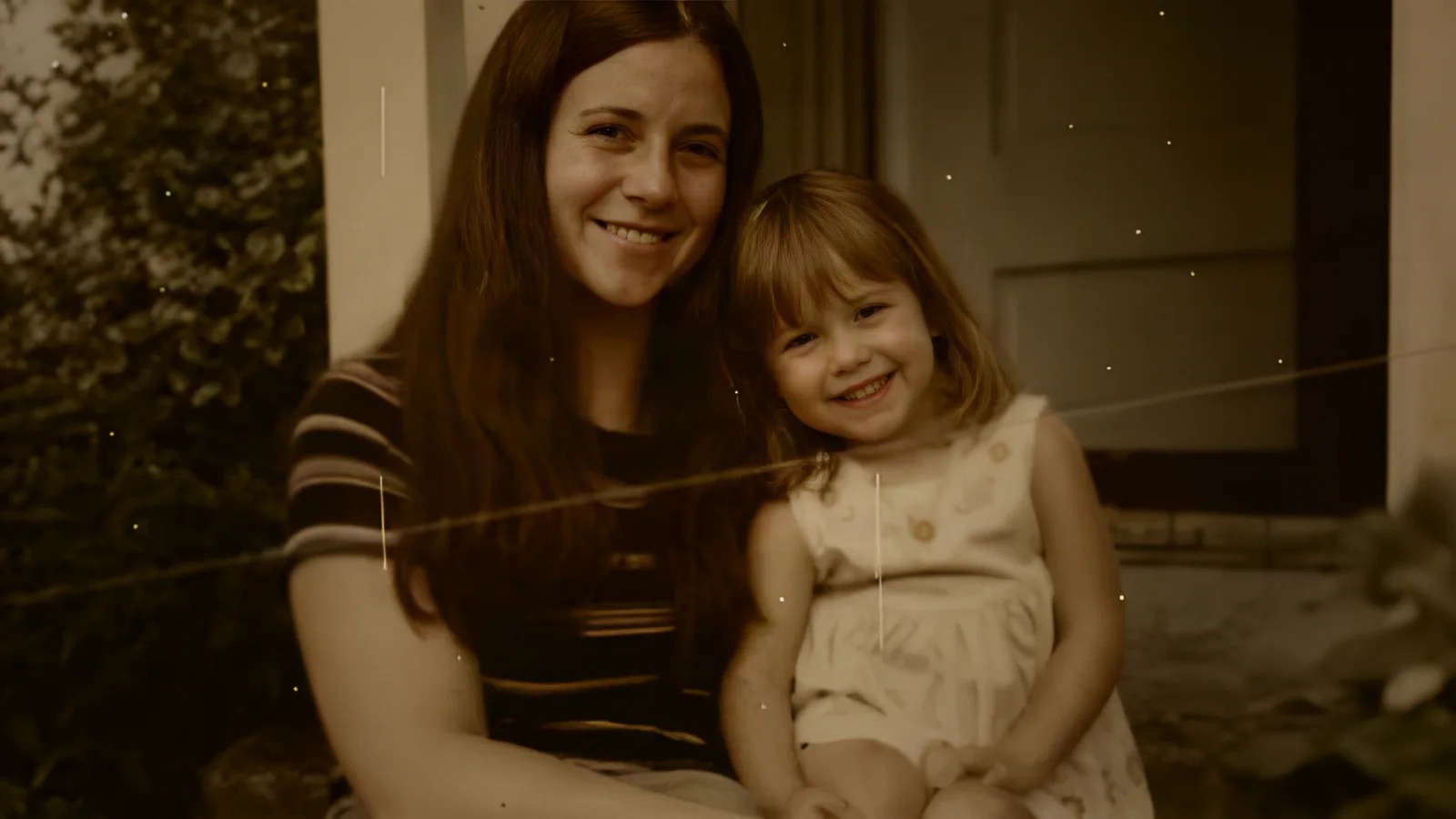
The same photo upscaled 2× with Enhance faces on, showing faces and fabric detail
Low-resolution family photo of a mother and her young daughter smiling on a porch
BeforeAfter

A PNG of up to 34 MP for print, web and social

Every upscale downloads as a PNG, and with super resolution a result can reach 34 megapixels, which is about 8K. Paid results have no watermark, while free daily results carry one. Use the file in a print layout, on a web page, in a presentation or in a social post, and keep editing it in the software you already use.

Start an Upscale
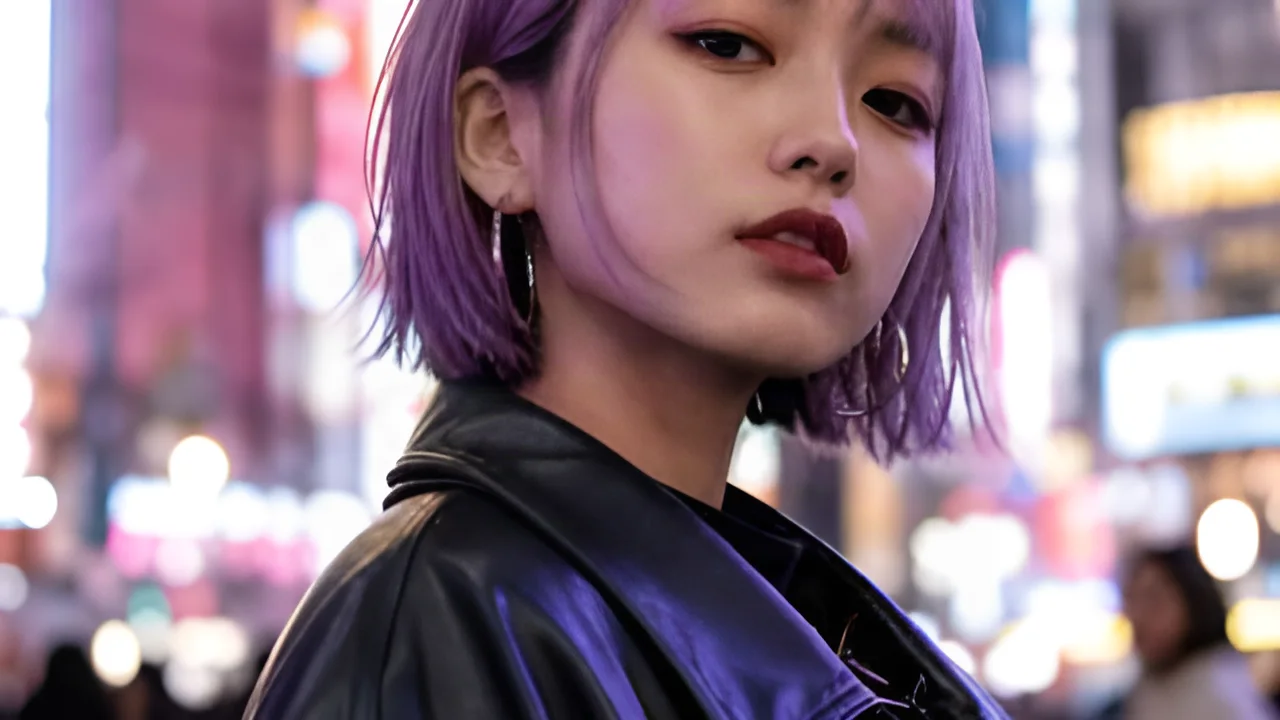
The same portrait upscaled 2×, showing hair strands, eyes and neon highlights
Low-resolution portrait of a woman with a purple bob in a neon-lit city at night
BeforeAfter

See the credit cost before you start

Before you press Upscale, the Cost line shows the credits that upscale will use, so you know what a result costs before it is made. Verified accounts get free daily credits, so a first image can be tried before buying more, and a signed-in account sees its balance beside the quote.

Check Your Cost
The same photo upscaled 2×, showing faces, striped stockings and tree ornaments
Low-resolution photo of three people in elf costumes dancing in a decorated living room
BeforeAfter

Why choose us

Why use this AI super resolution tool

This AI super resolution tool enlarges JPG, PNG and WebP files from 2× to 16× and hands you a PNG, with settings for the kind of image, a cost shown first and no software to install.

A factor for every image size

Four factors from 2× to 16× cover everything from a modest enlargement to a thumbnail turned into a full-size picture. With image super resolution you decide how large the result should be, from a light 2× touch to a 16× jump for a very small source.

Settings that match your artwork

You pick the mode and the face setting for each image, so a family portrait and a piece of fan art can each go through super resolution the way you intend, one file after another in the same session.

Spend credits where they matter

Spend credits on the images that gain the most from super resolution and use a lower factor for the rest. Each upscale is a separate choice, so you can change the factor from one image to the next and keep one balance across all of them.

Original and PNG, both kept

The upscaled PNG from super resolution downloads as a separate file, and your original file is never changed, so you always keep both. You can return to the original whenever you like and try the same image again at another factor.

Runs in your browser

Open the page in the browser on a laptop, a tablet or a phone and start from the upload area; the layout adapts to the screen you are holding, so the same steps work on a small screen and a large one.

Start with one image

Pick an image that matters to you and run it once at the factor you have in mind, then compare the result with the original at the size you will use it. That one run shows you how the mode, the factor and the cost work together.

How it works

How to upscale images in three steps

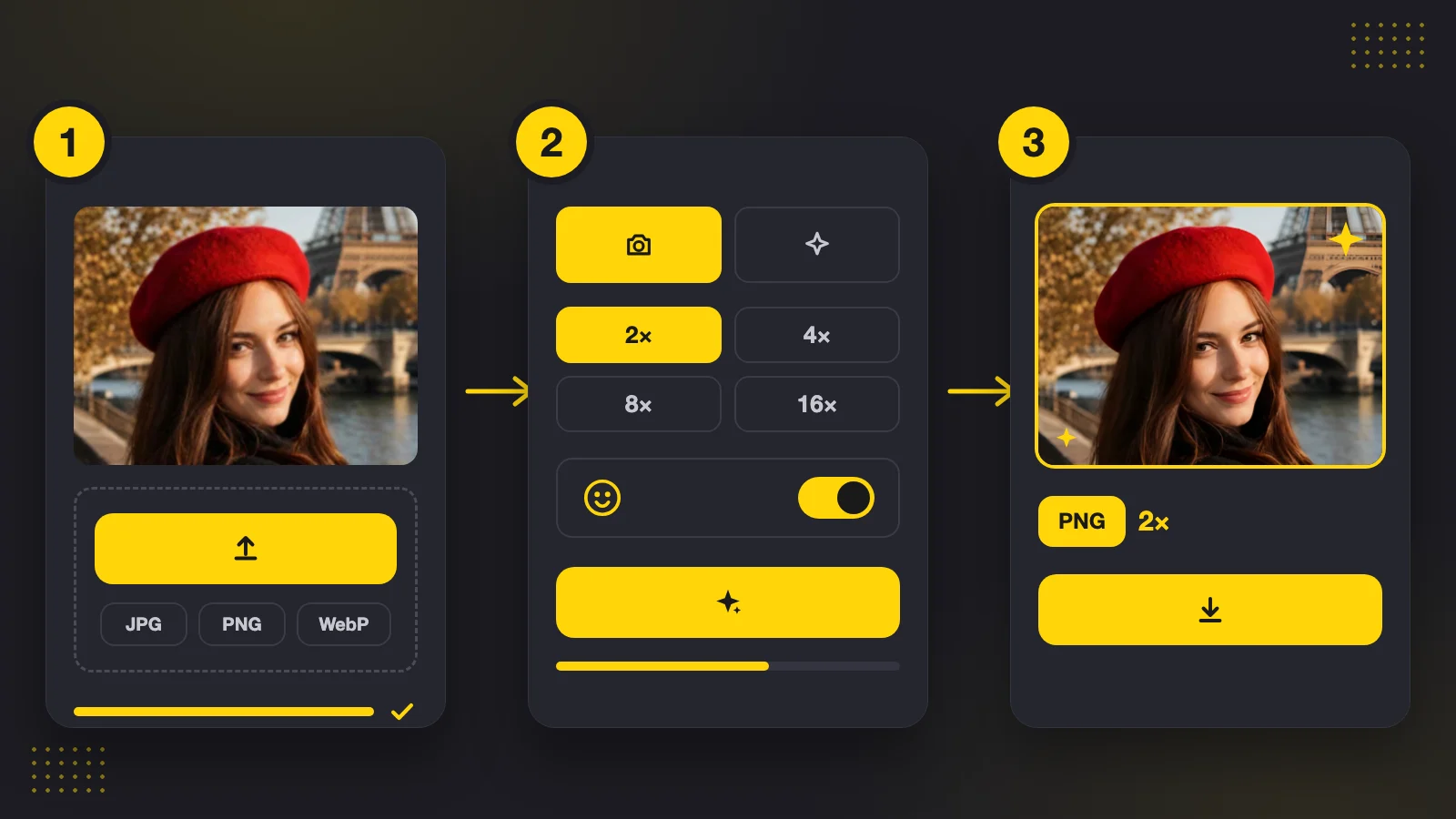
Using super resolution on this page takes three steps: upload an image, choose a mode and an upscale factor, then compare the result and download it as a PNG. Each step happens on the same page, from the upload area to the download button.

The three steps of upscaling an image: upload a photo, choose a mode and a factor, then download the larger PNG
  1. 1

    Upload your image

    Drop a still JPG, PNG or WebP file of up to 20 MB and 8.5 MP on the upload area, choose one from your device, or paste it from your clipboard. The page checks the image as soon as it loads and shows which factors fit your file.

  2. 2

    Choose a mode and a factor

    Pick Photo mode for camera photos or Anime mode for illustrations, then choose the super resolution factor: 2×, 4×, 8× or 16×. Turn on Enhance faces when the image shows people. A 16× upscale runs in 2 passes.

  3. 3

    Compare the result and download the PNG

    When the upscale finishes, drag the slider to compare the original with the super resolution version, then download the PNG. You can leave the page while an upscale runs, because the finished job is listed in History.

Upscale factors

Choose a super resolution factor: 2×, 4×, 8× or 16×

A super resolution factor multiplies the width and the height of an image, so a 4× upscale makes each side 4× as long. Each image shows the factors that fit within 34 MP.

2×

Doubles the width and the height. A modest step up for a photo that only needs to be a little larger.

4×

Quadruples the width and the height. Suits a photo headed for print or for a larger screen.

8×

Multiplies the width and the height by 8. Suits a small source image, such as a thumbnail, that needs a much larger canvas.

16×

Runs two 4× passes in a row to reach 16×. Suits very small images, such as icons and avatars, that need a far larger canvas.

Use cases

Upscale images you already have

Images that are smaller than their destination are where super resolution helps. Portraits, anime art, product photos and screenshots all follow the same path from a small file to a larger PNG.

Portraits and family photos

A portrait or a scanned family photo suits super resolution in Photo mode, especially with Enhance faces turned on. Use the PNG in a photo book, a frame or a shared album, and choose 2× for a modest print size or 4× for a larger one.

A low-resolution portrait of a smiling woman beside the same portrait upscaled in a photo frame

Anime and illustration art

Run fan art, game art or manga pages through Anime mode at 2× or 4×, and download a PNG for a wallpaper, a print or a portfolio page. Artists who export small files can reach a larger canvas without redrawing anything.

A low-resolution anime illustration of a white-haired girl beside the same illustration upscaled 2×

Online stores and product images

Use photo super resolution on a product photo when a listing, a banner or a catalog page asks for larger dimensions than the file has. Download the PNG, then crop or compress it in your usual tool before you publish it on the product page.

A low-resolution product photo of a leather watch beside the same photo upscaled 4× on a product page card

Screenshots, slides and social posts

Enlarge a screenshot with small text, a slide graphic or a social image with super resolution when a presentation, a help article or a post needs more pixels. Choose 2× or 4× for most of these, and compare the result with the original before you download.

A low-resolution photo of hands tearing a loaf of sourdough beside the same photo upscaled 2× as a social media post

Creator stories & examples

How people use super resolution

“A customer brought in a 900 by 1,200 px scan of her grandparents' portrait and asked for an A5 print, but the file was too small for that size. I ran it through super resolution at 2× with Enhance faces on and kept the version she preferred. The PNG matched our A5 template, so the order went out that week.”
Marta LindqvistPrint Shop Owner

FAQ

Super resolution FAQ

Answers to the questions people ask before they upscale an image online: what super resolution is, which factor to choose, which files work and how credits are used.

Super resolution enlarges an image by estimating the extra pixels it needs instead of only stretching the existing ones. Here, Super Resolution applies it to JPG, PNG and WebP images and returns a PNG that is 2×, 4×, 8× or 16× larger in width and height.

Upscale your next image with super resolution

Bring a small portrait, a piece of anime art, a product photo or a screenshot, pick a mode and a factor, and let super resolution produce a PNG for your print, page or post. The upload area at the top of the page is ready when you are.

Upscale an Image